
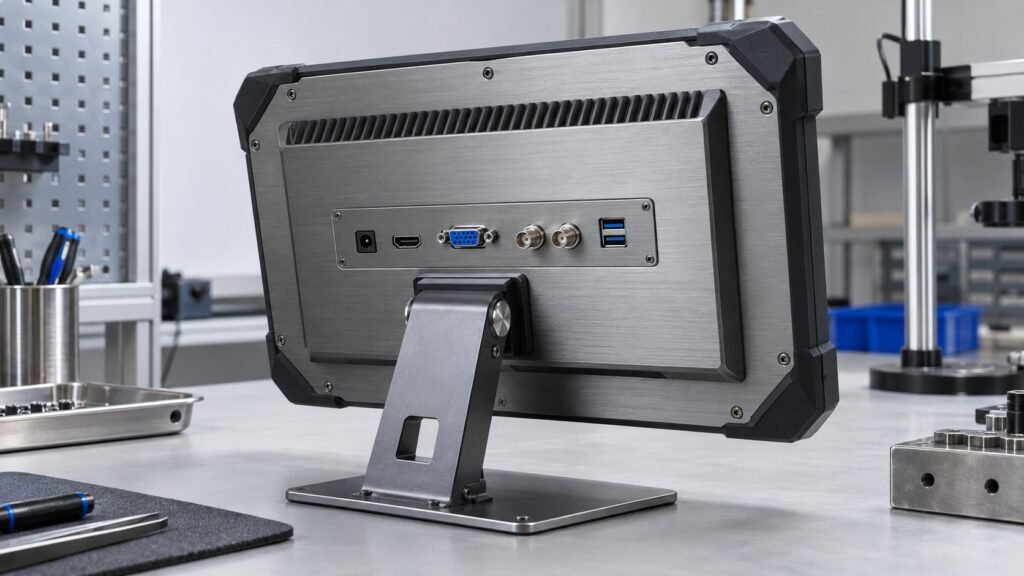
Start with the source device. The right industrial monitor input ports are the ones that match its signal, resolution and cable path. A connector that physically fits can still produce a black screen, unstable image or no touch response.
I’m Ashkan, IronView industrial monitor engineer. This guide follows one practical angle: match the source to the display before you order. You will compare IronView’s 17.3-inch, 18.5-inch and 19-inch monitors, then check adapters, EDID, cable length and USB touch separately.
Start with the source signal, not the screen size
Name the connector and the signal
HDMI and DisplayPort carry digital video. VGA carries analogue RGB. DVI can carry digital DVI-D, analogue DVI-A or both through DVI-I. The letter after DVI changes the adapter decision. DVI-D to HDMI is usually a digital conversion path. DVI-D to VGA needs an active converter because the source has no analogue signal.
A source may also expose more pixels than the monitor can show. CONTEC’s 23 March 2026 release separates DisplayPort output up to 4096×2304 from DVI-D and VGA output up to 1920×1200. Treat those figures as source output limits. They do not make a connected monitor accept DisplayPort or 4K input.
What newer industrial displays add
ARBOR’s 18.5-inch SM-181C listing includes HDMI, VGA and DVI, plus 12V DC input on a lockable Phoenix connector. It also lists panel and VESA mounting. The connector lesson is more useful here: power, video and touch are separate interfaces, even when they sit beside each other.
Advantech’s August 2026 FPM-300S announcement adds a Type-C single-cable option for power, touch and video. Do not assume every USB-C socket supports those three functions. Confirm video Alt Mode, power direction and the touch data path in the monitor specification.
- Digital source to digital input — prefer direct HDMI or DisplayPort where the monitor provides it.
- Analogue source to analogue input — use VGA when the source and display both support it.
- Legacy DVI source — identify DVI-D, DVI-I or DVI-A before choosing HDMI or VGA conversion.
See also: Industrial Monitor Lead Times 2026: What to Expect
Industrial monitor input ports in the IronView range
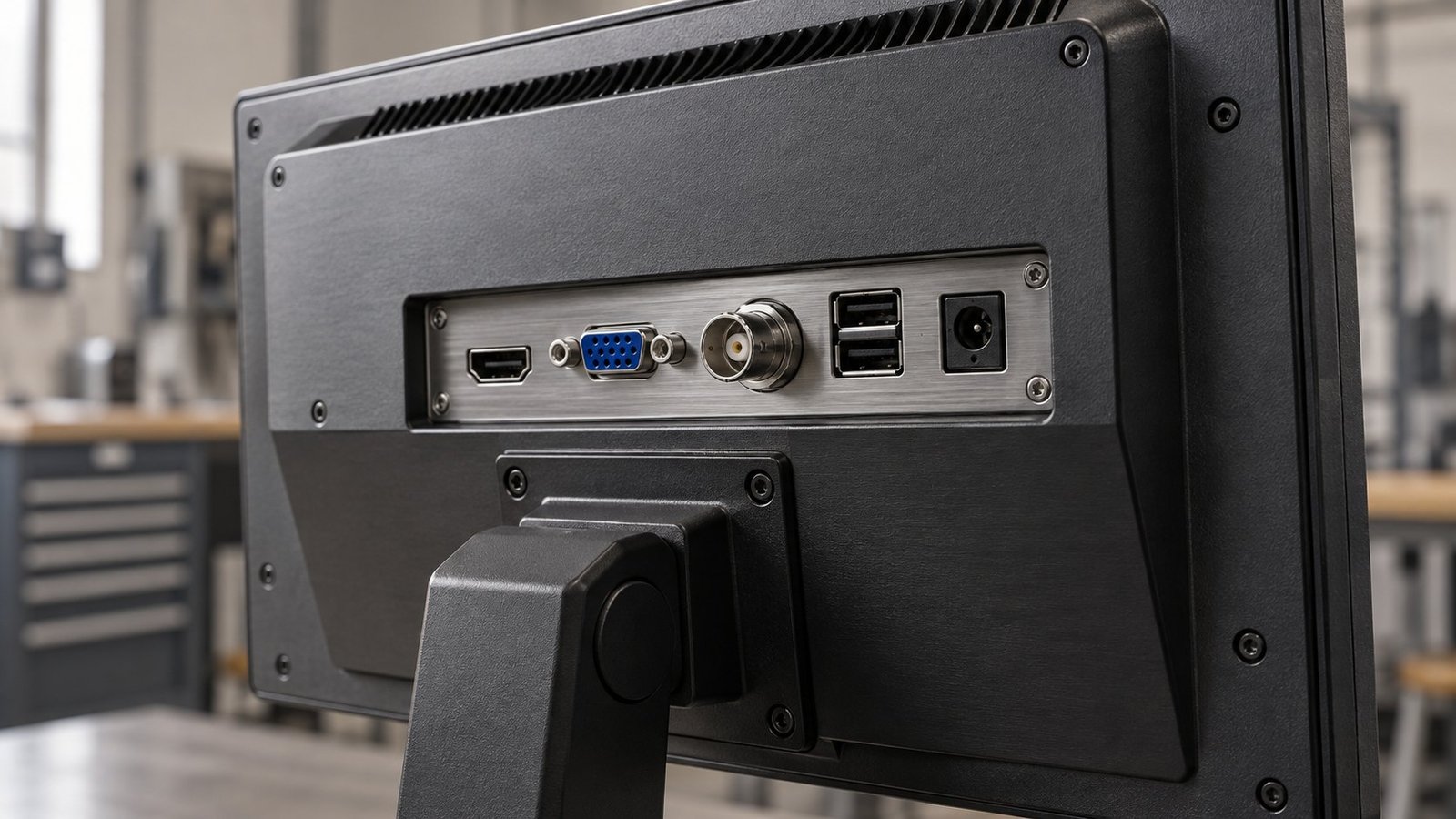
IronView’s current public port map is deliberately specific. The 17.3-inch widescreen model is 16:9 at 1920×1080 and lists AV, BNC, VGA, HDMI and USB. The 18.5-inch widescreen model is 16:9 at 1920×1080 and lists VGA, HDMI and USB.
The 19-inch 5:4 SXGA model runs at 1280×1024 and lists VGA, HDMI and USB. The 19-inch widescreen model is 16:10 at 1440×900 and lists AV, BNC, VGA, HDMI and USB. DVI and DisplayPort are not listed on these four standard maps, so a DVI-only or DisplayPort-only source needs a confirmed conversion path.
Supported combinations at a glance
An HDMI source can connect directly to all four listed IronView models. A VGA source can also connect directly to all four. A composite video or BNC source is limited to the 17.3-inch and 19-inch widescreen models shown in the map. USB appears beside the video ports because it supports touch data, not because it carries video on these standard configurations.
That distinction matters for an HDMI industrial monitor. HDMI can give you the picture while a separate USB cable carries touch events. If you order only the video lead, the display may work while the touch layer remains inactive. Specify both cables when the operator needs touch.
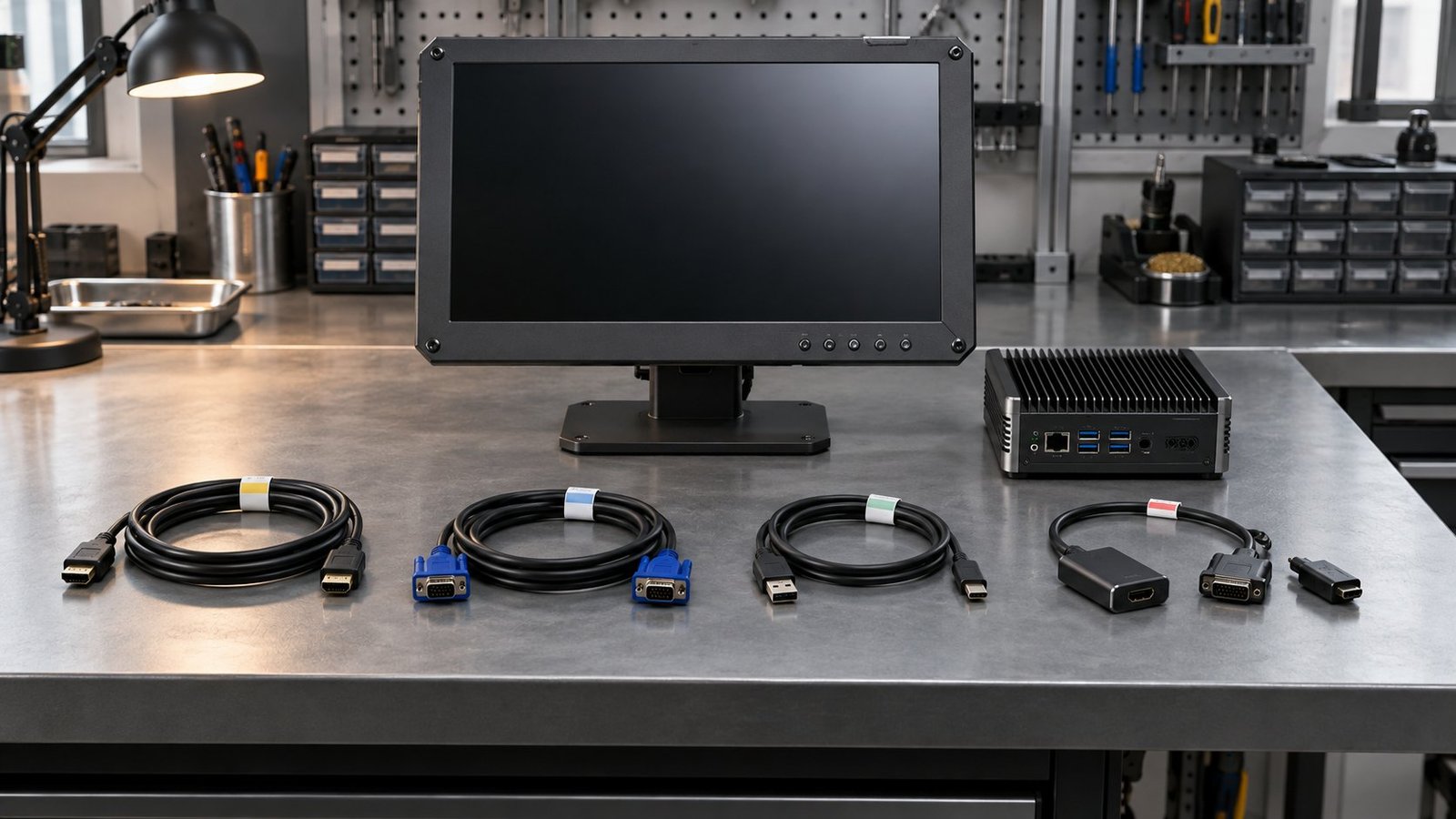
For an industrial monitor VGA DVI installation, check both ends before you approve the bill of materials. VGA can pass an analogue signal directly. DVI-D cannot become VGA through a simple plug-shaped adapter. The adapter must contain the conversion electronics required by the signal path.
See also: NEMA 4X vs IP65 Monitor: Same Protection?
Adapters, EDID and cable length decide the result
The handshake is part of compatibility
EDID is the display identification data read by the source. It tells the computer which modes the monitor reports. A converter can alter, delay or lose that handshake. A source may then select an unsupported mode, show no picture after reboot or fall back to a low resolution.
Set the source to the monitor’s native mode first. Use 1920×1080 for the IronView 17.3-inch and 18.5-inch models, 1280×1024 for the 19-inch SXGA model and 1440×900 for the 19-inch widescreen model. Then cold-boot the source with the final adapter and cable fitted.
Cable length and retention are practical limits
Test the cable at the installed length. A 2-metre lead on a bench does not prove a 5-metre or 10-metre cabinet run. Digital links can show intermittent dropouts when signal margin falls. VGA can soften at longer runs and may need a better shielded cable. Keep the video cable away from motor and inverter wiring where possible.
Check retention as well as signal. VGA and DVI use screw locks. DisplayPort commonly uses a latch. Standard HDMI often has no locking feature, so a locking HDMI cable or retention method may be needed near vibration. A Phoenix power connector uses a screw-clamp connection, but that does not lock the video lead.
Three field failures worth preventing
- A DisplayPort source connected to HDMI through a passive cable gives no image because the source does not provide the required DP++ conversion mode. An active DisplayPort-to-HDMI adapter fixes the signal path.
- A DVI-D workstation connected to VGA through a passive plug adapter stays black because the workstation outputs digital data only.
- An HDMI picture works at startup, but touch does not respond because the installer connected video and omitted the separate USB touch lead.
Use this pre-order compatibility checklist
- Record the source output exactly — HDMI, DisplayPort, VGA, DVI-D, DVI-I, AV or BNC.
- Record the required image mode — 1920×1080, 1280×1024 or 1440×900 for the listed IronView models.
- Choose a direct connection where possible. Add an active adapter when the source and monitor use different signal types.
- Confirm EDID behaviour, power-up order and whether the converter retains the required resolution after a cold boot.
- Specify the installed cable length and retention method. Test the final 2-metre, 5-metre or 10-metre route, not only a short spare lead.
- Add USB touch to the order separately. Video over HDMI, VGA or DVI does not carry touch data.
- Send the source model, output photo, cable length and required resolution with your quote request.
Before you choose from the IronView monitor range, write the complete signal path on the purchase order. If the source is unusual, send the details through Contact & Quotes →
FAQ: industrial monitor input ports
Does HDMI carry touch data?
No. HDMI carries video and audio where supported. IronView’s standard touch configurations use a separate USB connection for touch data.
Can a DisplayPort source connect to an IronView HDMI input?
Yes, when you use a suitable DisplayPort-to-HDMI adapter. Confirm whether the source needs an active adapter, then test EDID at the required native resolution.
Which IronView models accept BNC or AV?
The listed 17.3-inch and 19-inch widescreen models include AV and BNC. The 18.5-inch and 19-inch SXGA maps list VGA, HDMI and USB instead.
Choose the port path you can test
The safest specification names the source port, signal type, native resolution, adapter, cable length and USB touch lead. That removes most surprises before the monitor reaches your enclosure. For unfamiliar terms such as EDID, DVI-I or DisplayPort Alt Mode, use the Industrial Monitor Spec Glossary →


