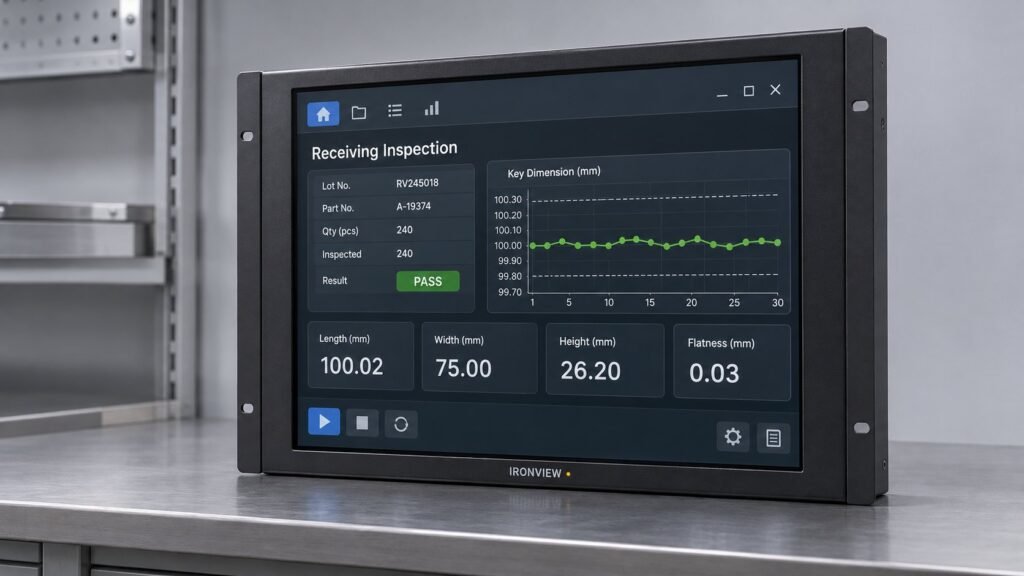
Industrial monitor dead pixels are accepted only against a written test method: name the ISO 9241-307 class, fix the viewing conditions, record each defect type, and state the RMA trigger. For IronView’s 17.3-inch, 18.5-inch and 19-inch models, a receiving record should require zero visible defects under a defined black, white, red, green and blue sequence.
That evidence procedure matters because manufacturer rules differ. Dell Display Pixel Guidelines shows that allowable bright and dark defects vary by product family. Ashkan, IronView industrial monitor engineer, recommends recording the panel revision and test result before dispatch and again at receipt. This article sets that industrial acceptance method.
What do industrial monitor dead pixels mean in acceptance testing?
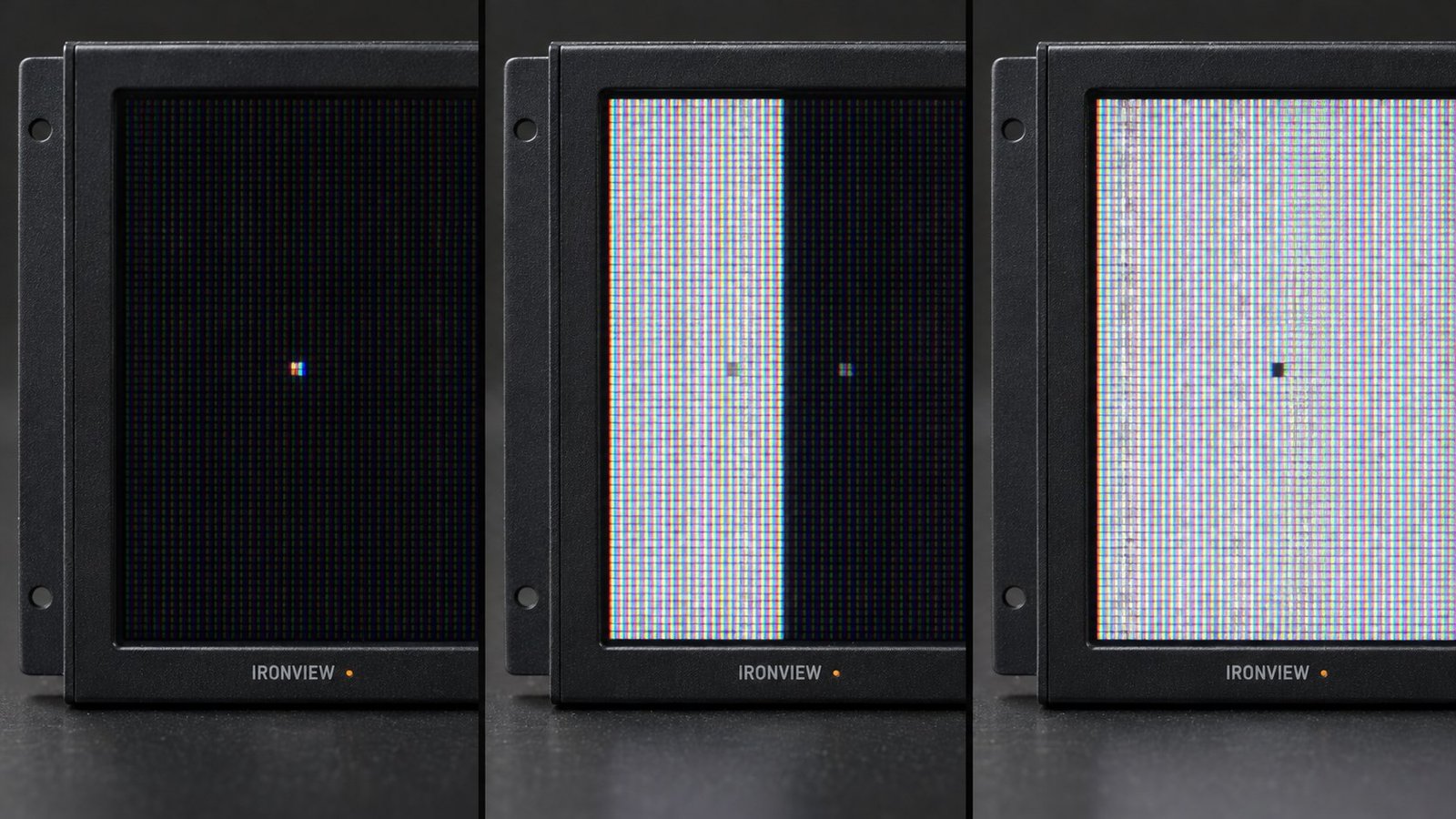
Industrial monitor dead pixels are not one condition. A stuck-on pixel remains lit on black. A stuck-off pixel stays dark on white. A stuck-dim defect is faint and must be checked on both white and black.
A 1920×1080 panel contains 2,073,600 pixels. Resolution does not define acceptance by itself. Your pixel defect acceptance criteria must identify the defect type, inspection field, viewing distance and measured count. The TFT LCD Pixel Defect Acceptance Criteria guidance also separates bright, dark, dim and cluster defects.
| Defect type | Required background | What you record |
|---|---|---|
| Stuck-on | Black | Bright point count; one visible point fails the IronView default trigger |
| Stuck-dim | White, then black | Dim point count on each field; any repeat defect fails |
| Stuck-off | White | Dark point count; one visible point fails |
| Sub-pixel defect | Red, green and blue | Colour-specific count, location and photograph |
See also: industrial monitor price
Which ISO backgrounds should you use for pixel inspection?
ISO 9241-306:2018(E), clauses 5.4.5.1–5.4.5.3, specifies black for stuck-on pixels, white and black for stuck-dim defects, and white for stuck-off defects. Use those backgrounds in a fixed sequence, then add red, green and blue fields for sub-pixel checks.
- Warm the unit for 30 minutes at 23 ± 2 °C and 50 ± 10% relative humidity. Hold the viewing distance at 500 mm and set the backlight to 100%. Failure mode — thermal settling or changing geometry can mask a defect.
- Display a uniform black field and inspect the full panel. Failure mode — a stuck-on defect is missed if the black field is not uniform.
- Display a uniform white field, then repeat black for stuck-dim inspection. Failure mode — dark or dim defects are missed when only one field is used.
- Run the colour sequence red → green → blue and record each affected sub-pixel. Failure mode — a colour-only defect is omitted from the measured count.
- Photograph every failed location and record the result against the SKU and panel revision. Failure mode — an RMA cannot be traced to the tested unit.
What should an IronView receiving record contain?
Your receiving and pre-shipment record must identify the exact SKU, panel revision, test conditions, sequence and measured defect count. Use the same fields for every model so procurement can compare a unit at dispatch with the same unit at receipt.
| Model | Mandatory record | Default decision |
|---|---|---|
| 17.3-inch industrial monitor | Exact SKU; panel revision; 30-minute warm-up; 23 ± 2 °C; 50 ± 10% RH; 500 mm; 100% backlight; black/white/red/green/blue sequence; measured count by defect type | Accept only 0 visible defects; any qualifying defect or 5×5 pixel cluster triggers RMA |
| 18.5-inch industrial monitor | Exact SKU; panel revision; 30-minute warm-up; 23 ± 2 °C; 50 ± 10% RH; 500 mm; 100% backlight; black/white/red/green/blue sequence; measured count by defect type | Accept only 0 visible defects; any qualifying defect or 5×5 pixel cluster triggers RMA |
| 19-inch SXGA industrial monitor | Exact SKU; panel revision; 30-minute warm-up; 23 ± 2 °C; 50 ± 10% RH; 500 mm; 100% backlight; black/white/red/green/blue sequence; measured count by defect type | Accept only 0 visible defects; any qualifying defect or 5×5 pixel cluster triggers RMA |
| 19-inch widescreen industrial monitor | Exact SKU; panel revision; 30-minute warm-up; 23 ± 2 °C; 50 ± 10% RH; 500 mm; 100% backlight; black/white/red/green/blue sequence; measured count by defect type | Accept only 0 visible defects; any qualifying defect or 5×5 pixel cluster triggers RMA |
A completed result can read: SKU [exact label], panel revision [exact revision], 30 minutes, 23.1 °C, 48% RH, 500 mm, 100% backlight, counts 0/0/0/0/0/0, pass. For a panel used in SCADA or a control room, pair this record with How to Choose a SCADA / Control Room Display before you set the procurement requirement.
See also: 19 Industrial Monitor Gasket Compression Test
What exact rule should trigger an RMA?
State the adopted classification and the commercial trigger separately. The record should name ISO 9241-307 Class II explicitly. IronView’s default industrial acceptance trigger should be zero visible defects after the fixed sequence.
Open an RMA for one stuck-on, stuck-dim, stuck-off or colour sub-pixel defect that remains visible under the stated conditions. Also open an RMA when two or more defects fall within a 5 × 5 pixel area, even if each mark is faint. This cluster rule prevents several nearby defects being treated as unrelated points.
Dell Display Pixel Guidelines shows why you cannot borrow a limit from another product family. The industrial display pixel policy must be written into the purchase specification. Roc Industrial notes that individual dead pixels are generally not economically repairable, while significant defects usually require panel replacement. Pre-shipment evidence therefore protects the installation schedule.
FAQ: Industrial monitor dead pixels
Is one dead pixel enough for an industrial RMA?
Under IronView’s proposed default, yes. One visible stuck-on, stuck-dim, stuck-off or colour sub-pixel defect fails the acceptance test when the documented conditions are met.
Does 1920×1080 change the acceptance rule?
No. A 1920×1080 panel has 2,073,600 pixels, but pixel count does not replace a stated ISO class, test method or contractual RMA trigger.
Should the touch layer change the pixel test?
No. Test pixels with touch idle, then evaluate touch performance separately. For that second requirement, see Resistive vs Capacitive Touch Screens (Industrial).
Specify the pixel rule before purchase
Put the exact SKU, panel revision, 30-minute warm-up, 23 ± 2 °C environment, 500 mm viewing distance, 100% backlight, five-field sequence, measured count and 5 × 5 cluster rule in the purchase record. Then select the matching industrial PC touch screen monitor →