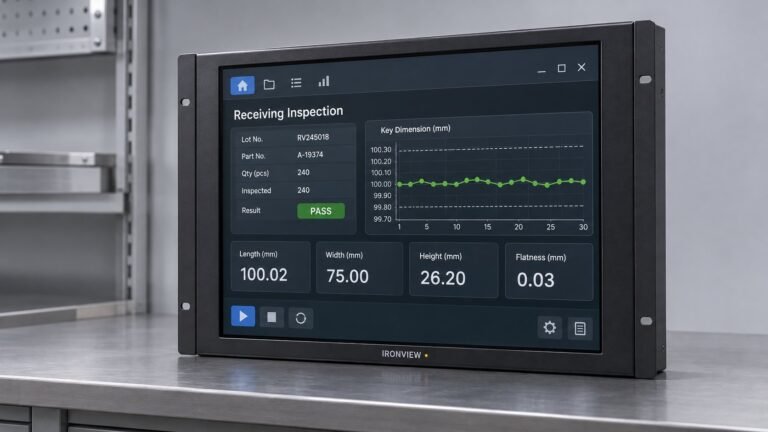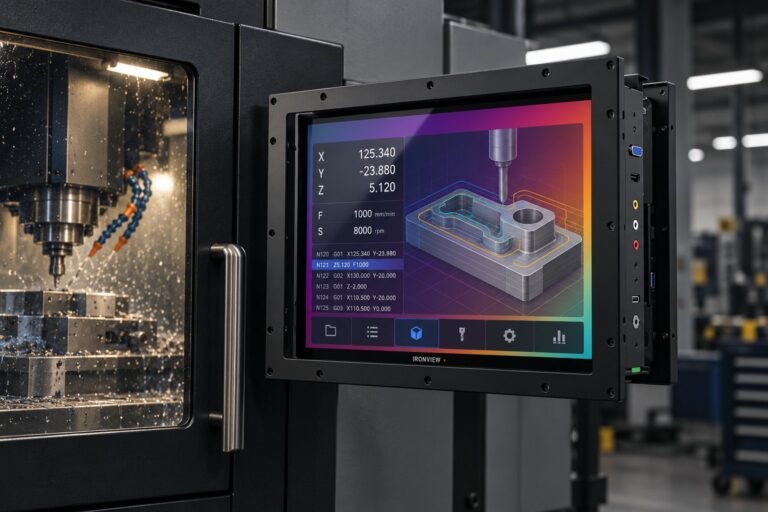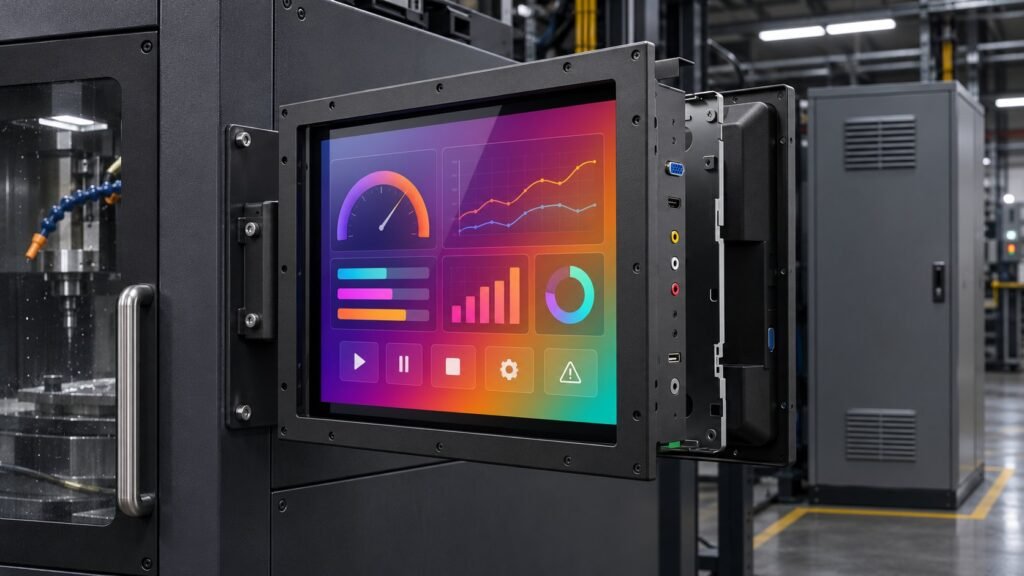
An HDBaseT industrial monitor can carry video, touch and USB to a remote operator station over 100 m, but the distance is a system claim—not a guaranteed result in your cabinet. You need a controlled test at 10, 30, 50 and 100 m, with latency, dropouts and exact failure triggers recorded.
Several 2026 HMI launches now promote HDBaseT for separated computers and operator stations. The practical question is narrower: does your complete installation survive the route? This guide sets IronView’s test method for 17.3″, 18.5″ and 19″ industrial monitors. — Ashkan, IronView industrial monitor engineer.
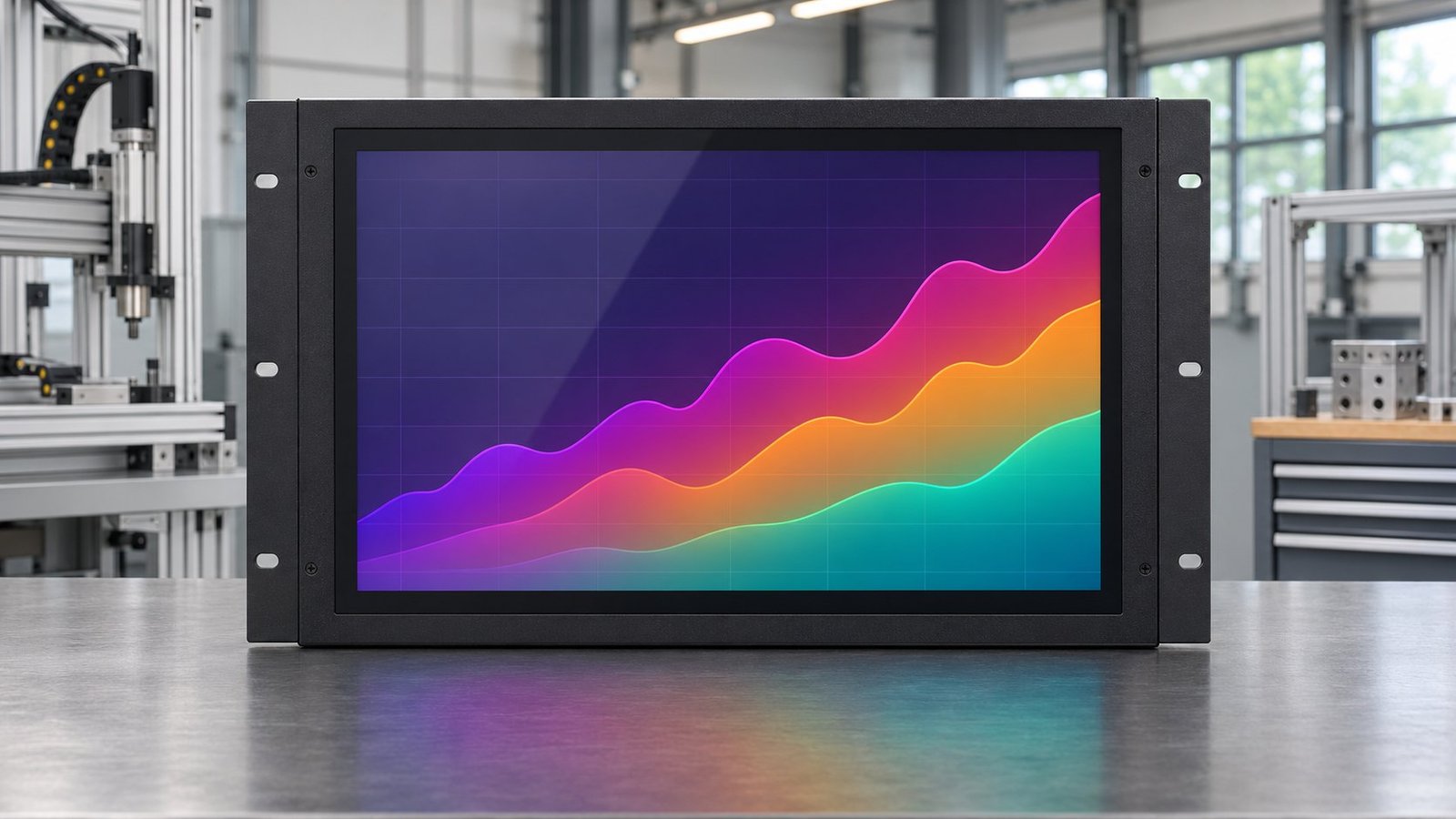
What does 100 m mean for an HDBaseT industrial monitor?
A 100 m rating describes the intended transmission capability of a compatible transmitter, receiver and cable path. It does not guarantee video, touch or USB through every installed route.
Advantech’s SPC-800 V2 announcement identifies HDBaseT 2.0 on its monitor model for video transmission up to 100 m and lists VESA, pole, arm and ceiling mounting. ADS-TEC’s MED9000 page describes optional HDBaseT carrying image, sound and touch control up to 100 m over one cable. NODKA’s PANEL5000-A152-T-A specifies CAT6-or-better cable, RJ45 NDLink, two USB 2.0 outputs, 12–24 VDC input and 100 m transmission.
Treat HDBaseT display distance as a system variable. Patch panels, couplers, excess joins, electromagnetic interference and an unshielded route can change the result. A catalogue claim is not evidence that 100 m HMI video will remain stable in your enclosure.
What do the product pages leave unanswered?
The product pages state a 100 m capability, but they do not show whether video, touch and USB survive a measured cabinet-to-station installation with defined failure criteria. Your acceptance record must close that gap.
What should IronView test at 10, 30, 50 and 100 m?
IronView should test one 17.3-inch, one 18.5-inch and one 19-inch monitor at every distance. Use the same source, route method and acceptance record so screen size does not hide a link fault.
| Monitor | Distances | Record | Go/no-go use |
|---|---|---|---|
| 17.3-inch | 10, 30, 50 and 100 m | Cable category, shielding, resolution, refresh rate and measured latency in ms | Go only when the complete route meets the machine response limit |
| 18.5-inch | 10, 30, 50 and 100 m | Touch response, dropout count and power-cycle recovery | No dropped touch, unexplained dropout or failed recovery |
| 19-inch | 10, 30, 50 and 100 m | Blanking, USB disconnects and link retrains | No blanking, USB disconnect or retrain during the test |
Set the source resolution and refresh rate before testing. Record the exact values. Measure latency in milliseconds rather than describing the response as fast or slow. A result without a number cannot be compared between routes or monitor sizes.
How should you wire and measure the remote station?
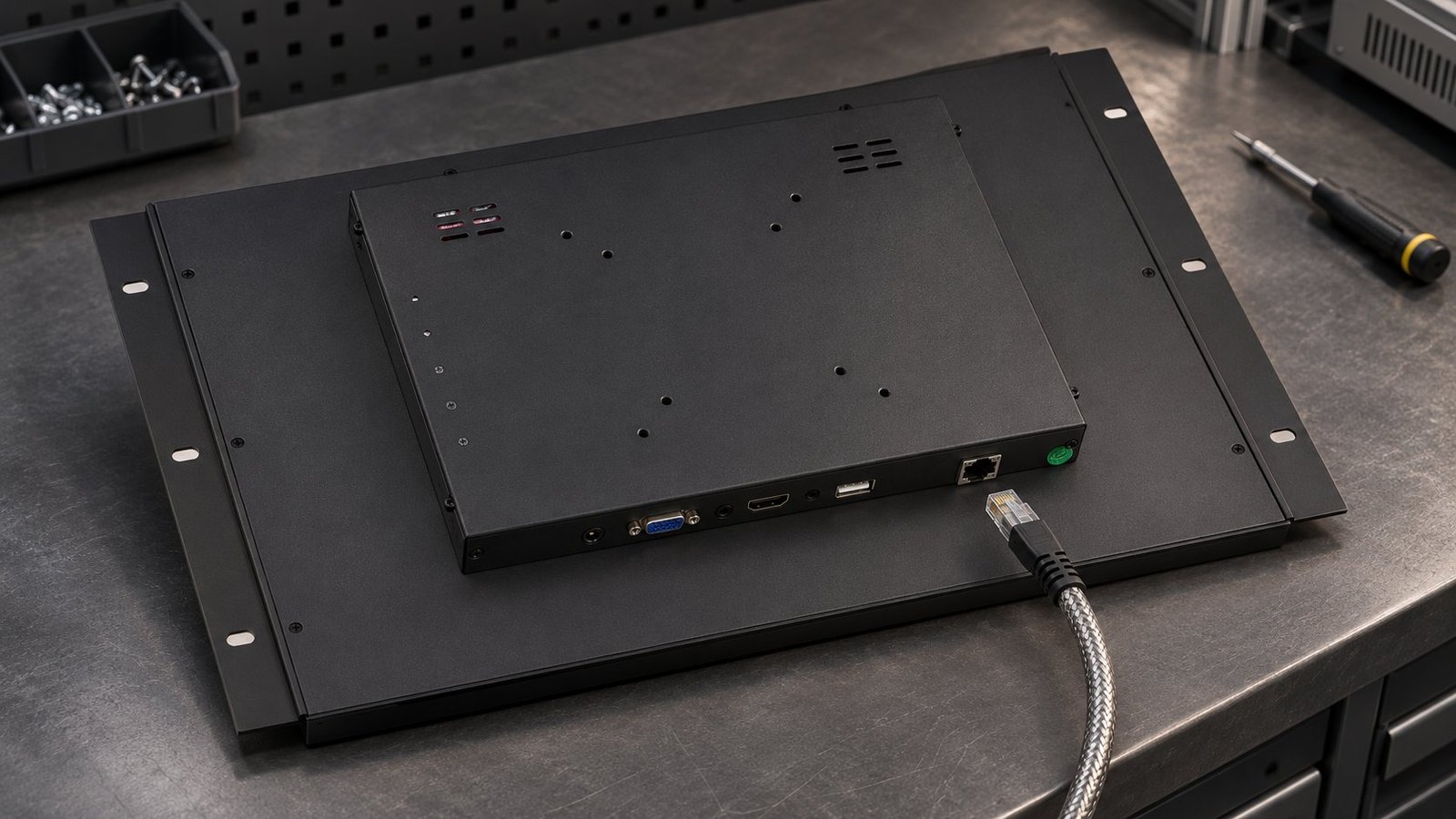
Use a fixed, documented route from the computer cabinet to the operator station. The test topology is: Computer video and USB host → HDBaseT transmitter → CAT6-or-better cable route → HDBaseT receiver → monitor video, touch and USB, with local power connected as specified for the selected equipment.
For a CAT6 industrial display installation, record whether the cable is shielded, its category, its installed length and every intermediate connection. Do not report only the nominal cable length when the route includes patch panels or couplers.
IronView’s commissioning sequence
- Document the route, cable category, shielding, patch panels and couplers. Failure trigger: an unplanned unshielded segment or connection is discovered.
- Set and record source resolution and refresh rate. Run the 10 m baseline first. Failure trigger: blanking or link retrain at the baseline.
- Repeat the same source test at 30, 50 and 100 m for all three monitor sizes. Failure trigger: any blanking, dropout or link retrain.
- Exercise touch across the full active area, including corners and the centre. Failure trigger: dropped touch, delayed response or touch recovery only after reconnecting.
- Operate the connected USB devices, including both USB 2.0 outputs where the selected endpoint provides them. Failure trigger: USB disconnect, device reset or loss after a display power cycle.
- Power-cycle the display and receiver under the documented procedure. Record recovery time and measured latency in milliseconds. Failure trigger: no picture, no touch, missing USB or manual link retraining.
Which IronView monitor size should you qualify first?
Choose the test unit by your enclosure opening and viewing distance, then qualify the other sizes separately. Do not assume that a route passing on one screen proves the same result on another.
| Size | Use when | Check before approval |
|---|---|---|
| 17.3-inch | Your operator station has a compact panel opening | Confirm the same source settings and touch area at 100 m |
| 18.5-inch | You need a wider working area without changing the remote-computer location | Confirm mounting fit, viewing position and power-cycle recovery |
| 19-inch | Your machine uses a larger legacy display opening | Confirm bezel, flange and VESA fit before the signal test |
If the display is part of a wider control-room decision, use How to Choose a SCADA / Control Room Display for the viewing and installation context. Keep the present test focused on signal integrity.
See also: Best Industrial Touch Screen Monitor for SCADA
What is the go/no-go checklist for 100 m HMI video?
Approve the route only when every required signal survives the complete installation. The checklist below separates a documented pass from a vague distance claim.
- Cable category and shielding are recorded for the installed route.
- Source resolution and refresh rate are recorded for every monitor size.
- Measured latency is recorded in milliseconds, with the machine’s acceptable limit stated.
- Dropout count is recorded at 10, 30, 50 and 100 m.
- Power-cycle recovery is tested and returns video, touch and USB without manual retraining.
- No blanking, dropped touch, USB disconnect or link retrain occurs during the approved test.
- The route contains no untested patch panel, coupler or EMI exposure that differs from production.
For the wider product evidence file, pair this route record with UL 62368-1 Ed. 4: Evidence for Industrial Displays. For touch selection, compare the operating conditions in Resistive vs Capacitive Touch Screens (Industrial) before fixing the acceptance test.
See also: industrial pc touch screen monitor
FAQ: HDBaseT industrial monitor testing
Is CAT6 enough for a 100 m display route?
CAT6 or better may be specified by the equipment. NODKA lists CAT6-or-better cable for the PANEL5000-A152-T-A. Your installed route still needs validation for shielding, joins and interference.
Does HDBaseT carry touch and USB as well as video?
It can, when the selected transmitter, receiver and monitor support those signals. ADS-TEC describes image, sound and touch control over one cable, while NODKA lists two USB 2.0 outputs. Test each signal separately.
What counts as a failed 100 m test?
Any blanking, dropped touch, USB disconnect or link retrain is a failure unless your documented acceptance plan explicitly permits it. Record the trigger and the exact distance.
Can you accept a 100 m claim without a cabinet test?
No. A 100 m claim helps you shortlist equipment. The cabinet-to-station test proves whether your cable route, interference environment and connected devices work together.
What should you specify before ordering?
Specify the monitor size, source settings, cable route, shielding, power arrangement and acceptance criteria before procurement. Then review IronView’s industrial touch panel PCs for the 17.3″, 18.5″ and 19″ range and request a route-specific check →